Blackbox CLI
What you can do with the BlackBox CLI
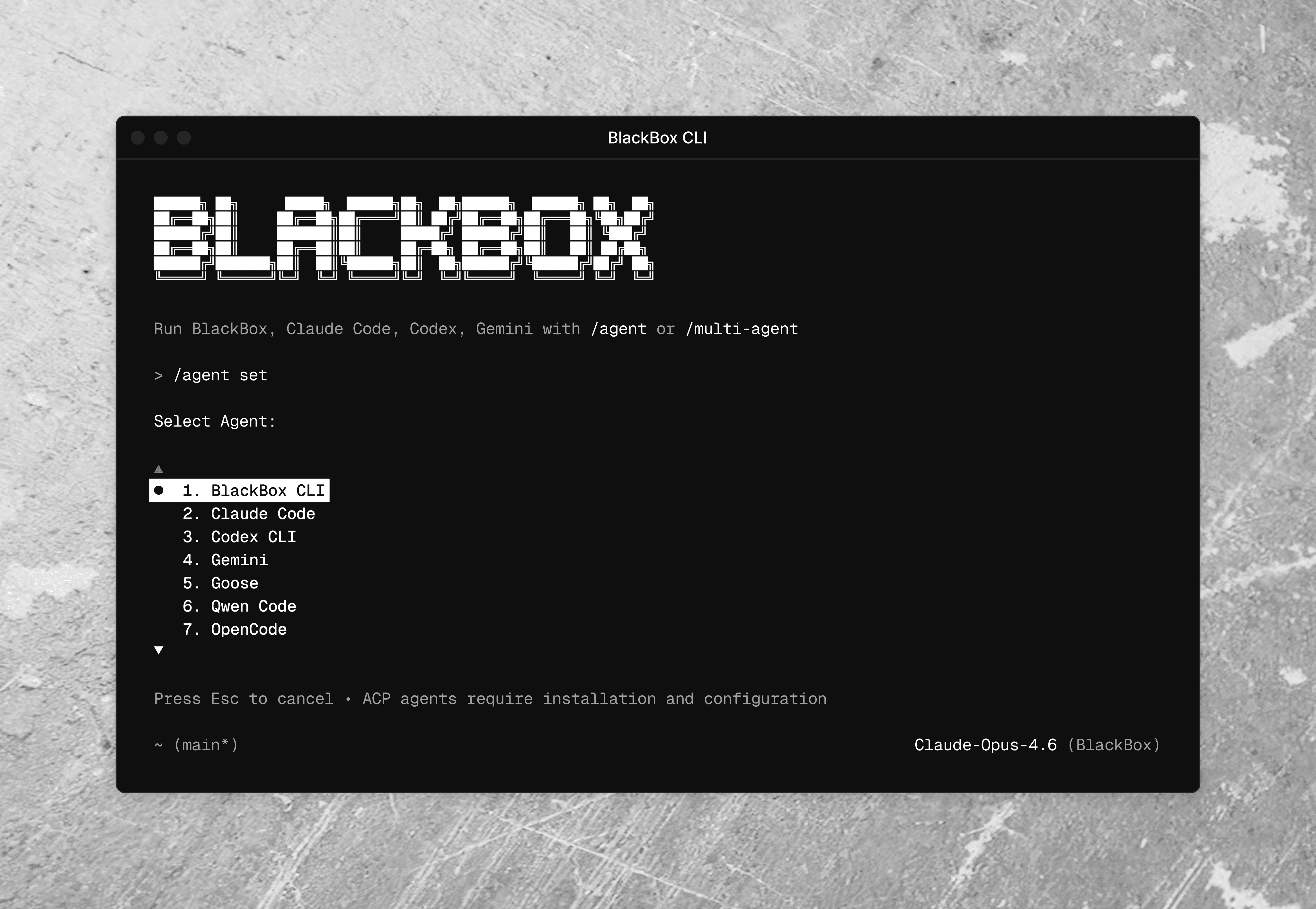
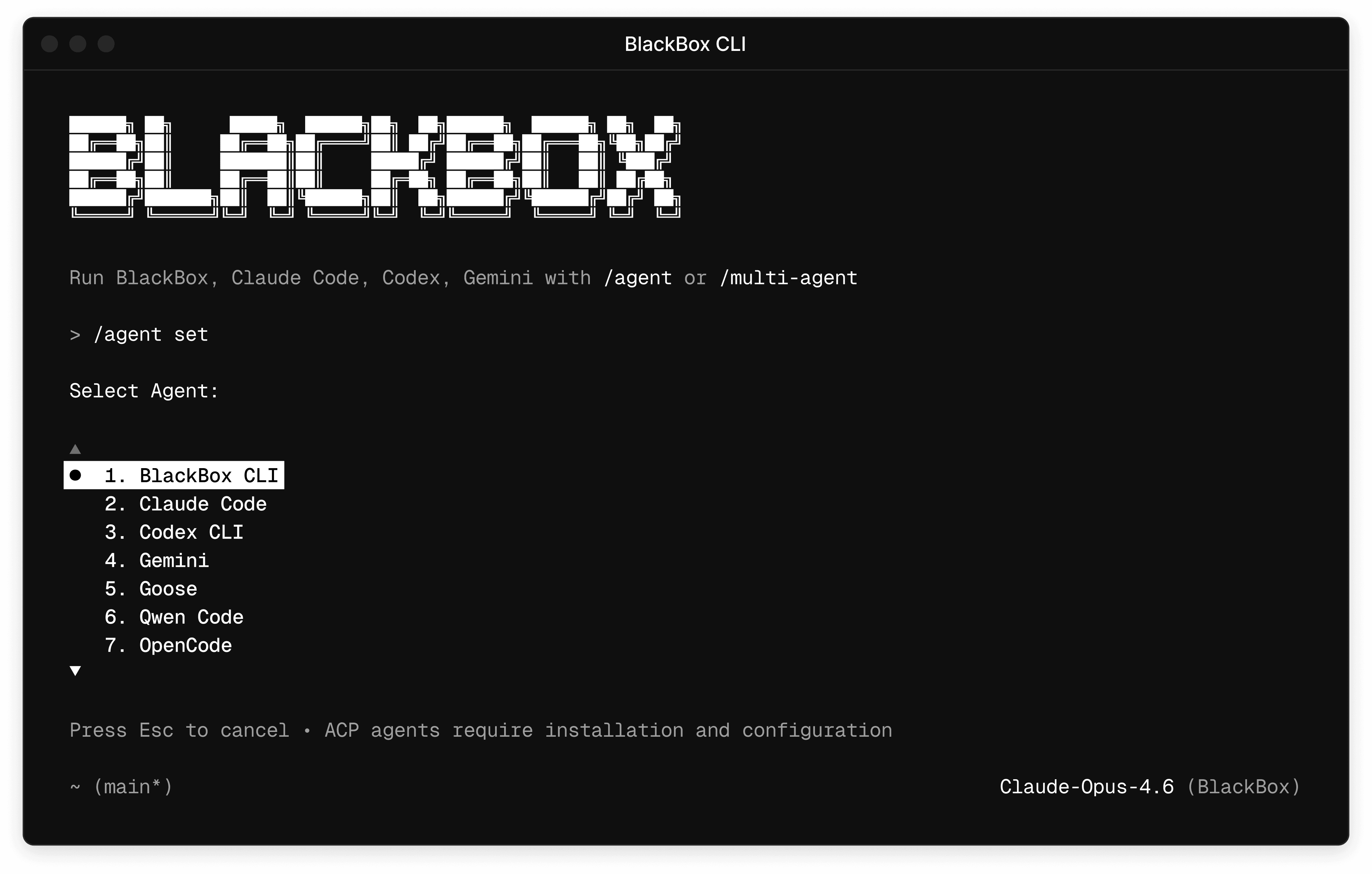
The BlackBox CLI lets you run AI requests from the terminal and apply results directly to your codebase.
Project Setup
AI Code Generation
Smart Debugging & Fixes
Automated Tests
Multi-Language Support
Natural Language CLI
CI/CD Automation
Database Help
AI-Powered Development From Start to Finish
Manage projects, generate code, debug issues, deploy applications, and work across any stack — all from one intelligent CLI.
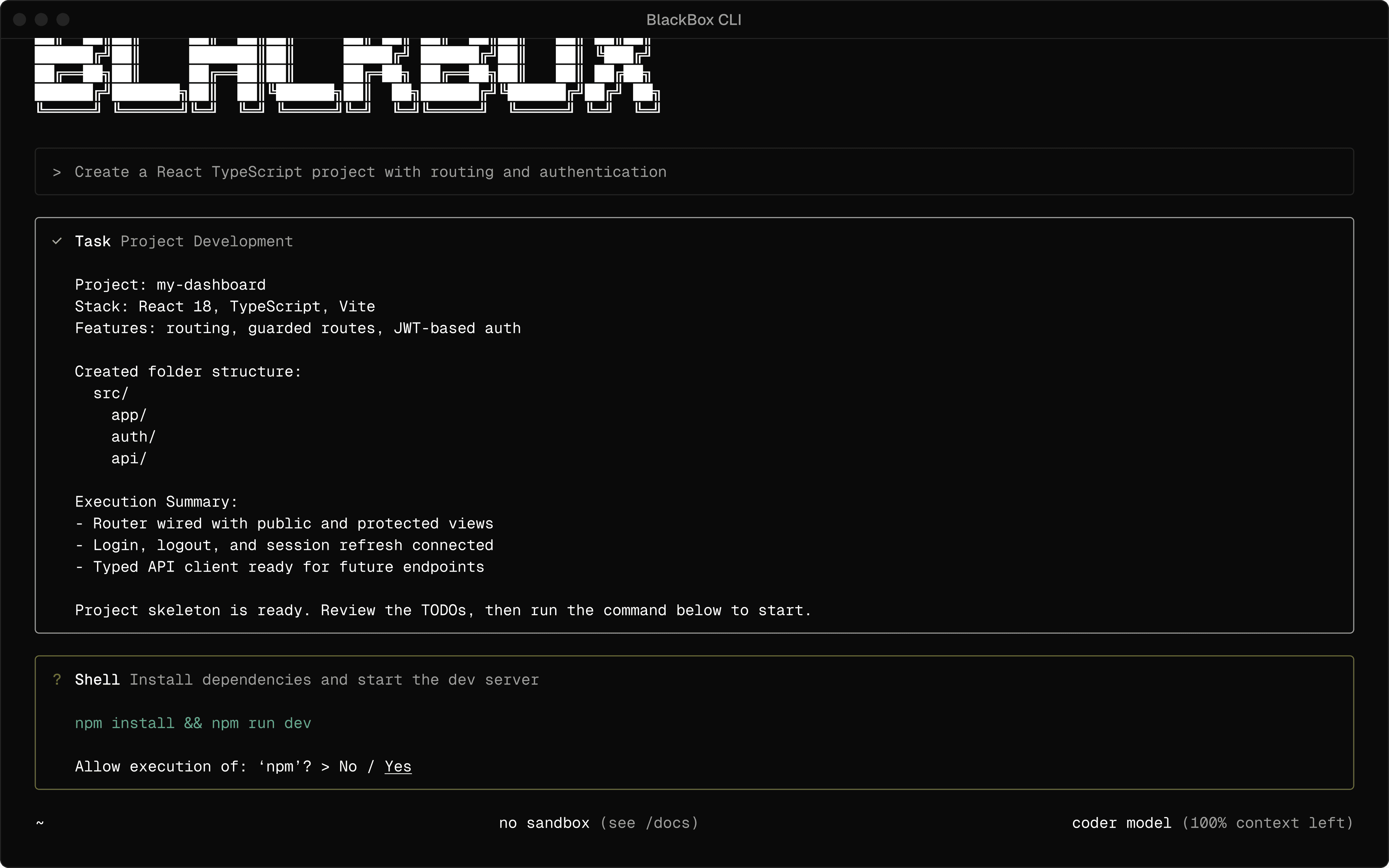
Project Development
Complete project lifecycle management from initialization to deployment.
01
Auto Setup. Initialize projects with dependencies and proper structure.
02
Code Generation. Create functions, APIs, and features from descriptions.
03
Architecture Planning. Get recommendations for scalable project structures
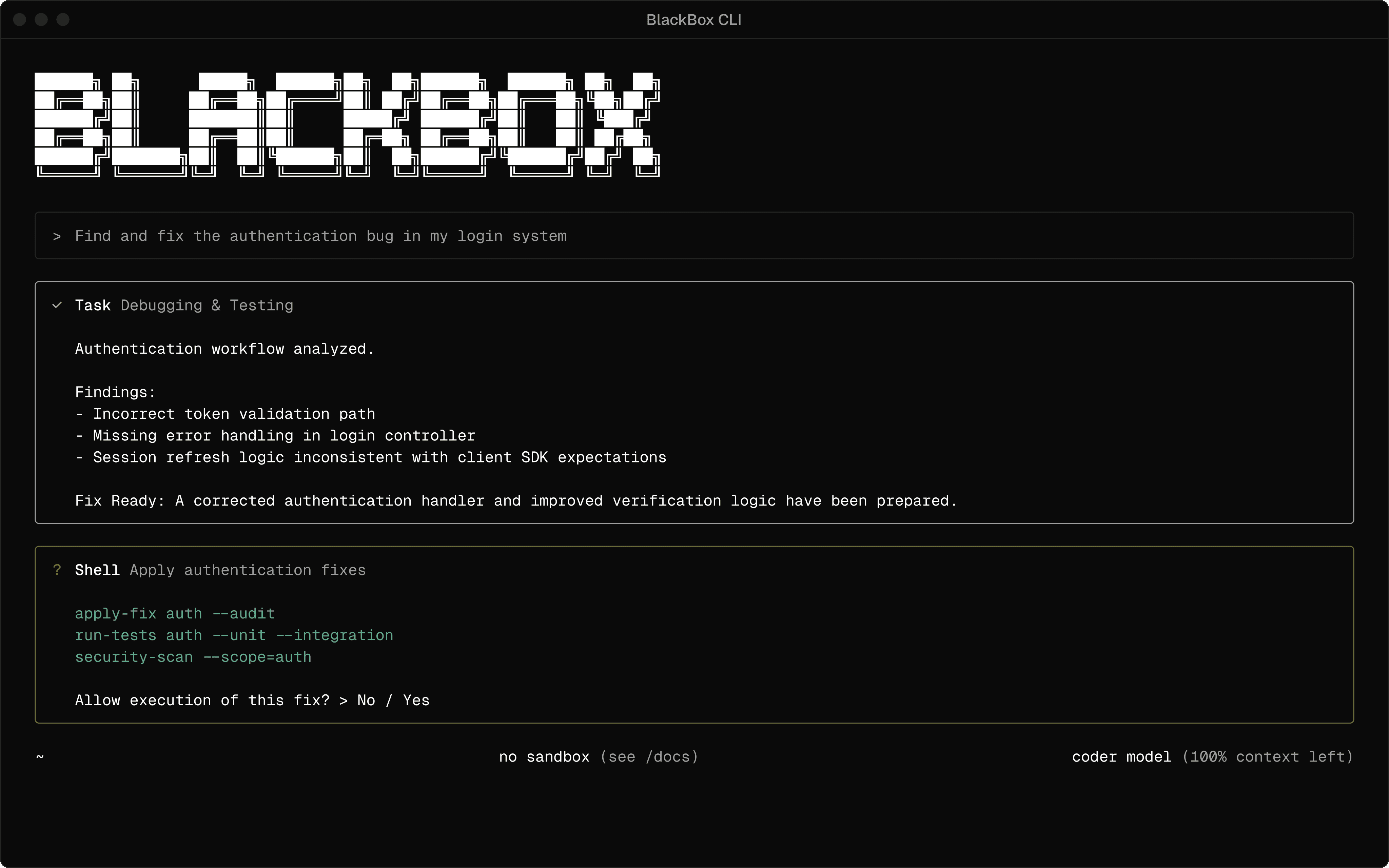
Debugging and Testing
Intelligent error detection and automated testing capabilities.
01
Auto Testing. Generate unit tests and integration tests.
02
Smart Debugging. Identify and fix compilation and runtime errors.
03
Security Analysis. Detect vulnerabilities and performance issues.
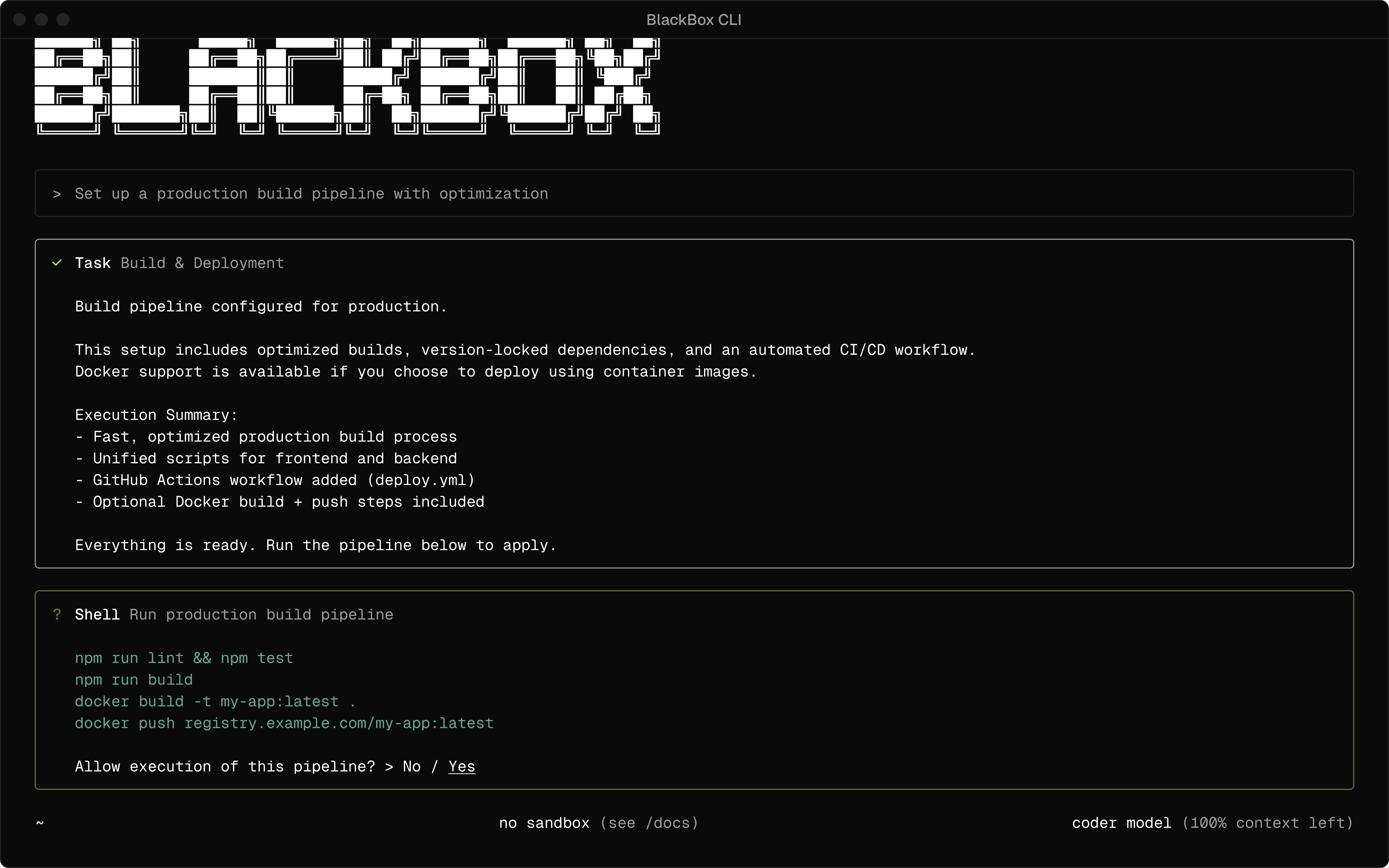
Build and Deployment
Automated workflows for building and deploying applications.
01
Build Automation. Handle compilation, bundling, and optimization.
02
Dependency Management. Install and manage project dependencies.
03
CI/CD Setup. Configure deployment pipelines and environment.
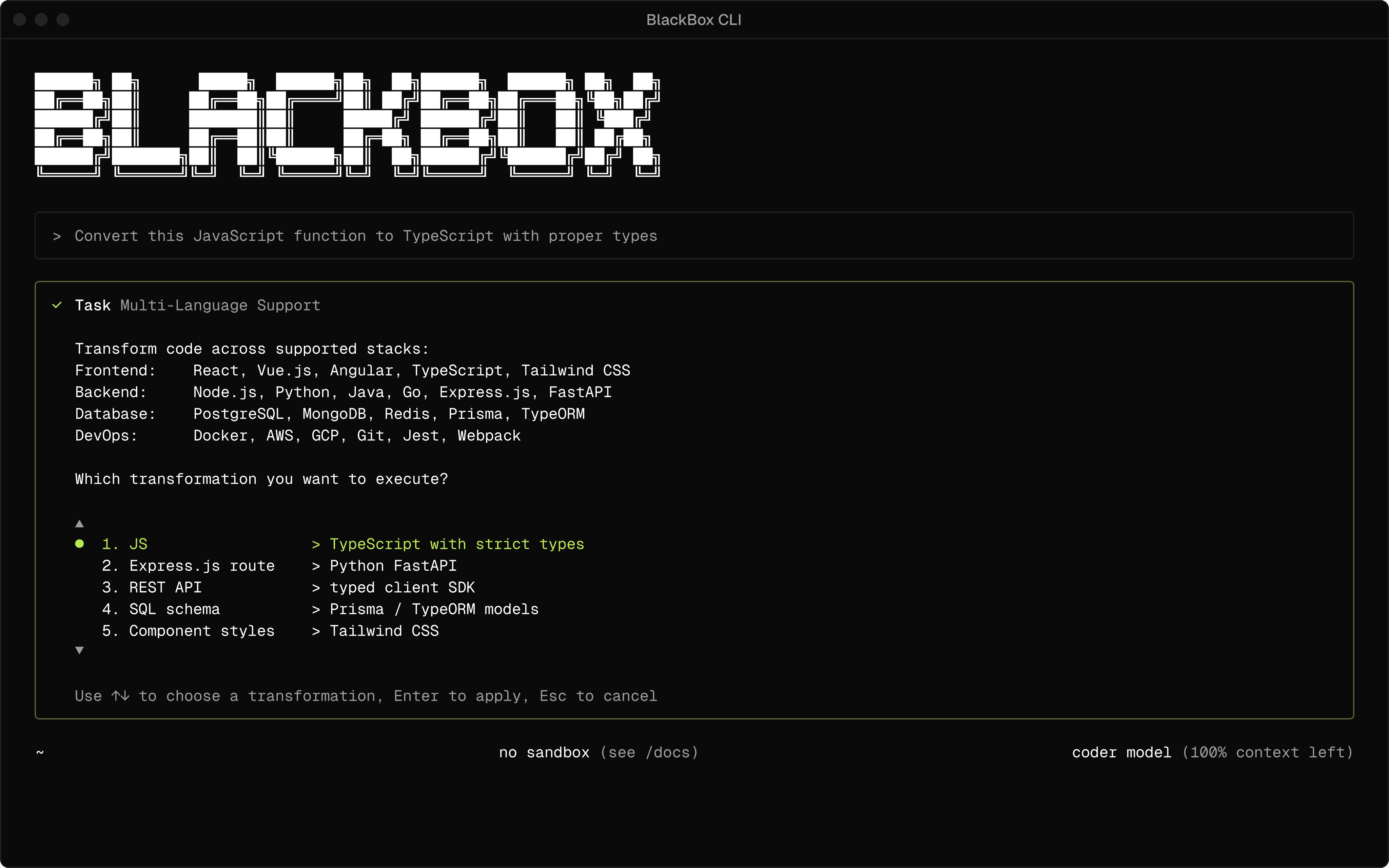
Multi-Language Support
Comprehensive support for modern development stacks.
01
Frontend. React, Vue.js, Angular, TypeScript, Tailwind CSS.
02
Backend. Node.js, Python, Java, Go, Express.js, FastAPI.
03
Database. PostgreSQL, MongoDB, Redis, Prisma, TypeORM.
03
DevOps. Docker, AWS, GCP, Git, Jest, Webpack.
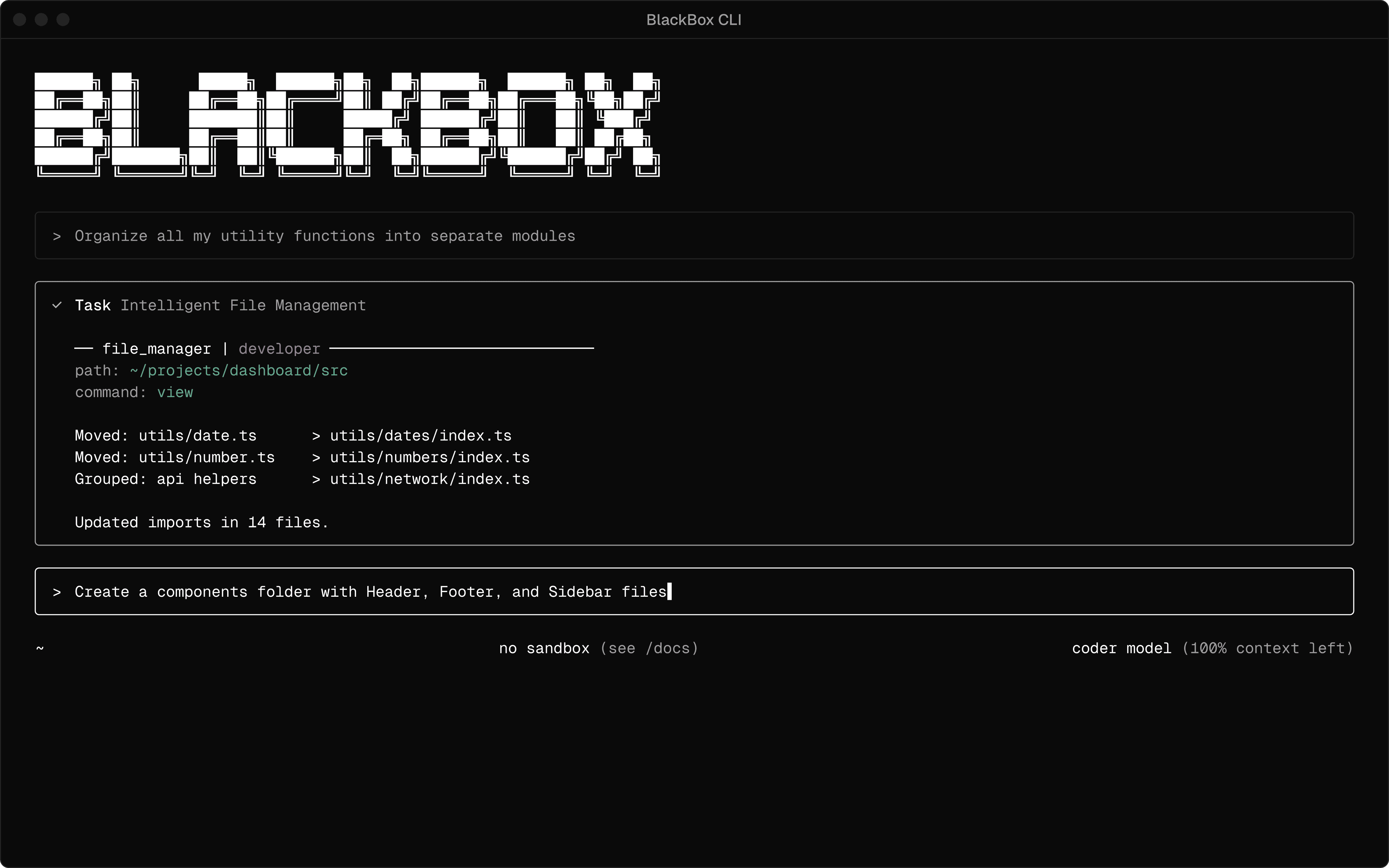
Intelligent File Management
Create, edit, and organize files through natural language commands.
01
Smart Creation. Generate project structures with simple descriptions.
02
Bulk Operations. Modify multiple files simultaneously with consistent formatting.
03
Intelligent Search. Find files by content, functionality, or patterns.
Get Started in 3 Simple Steps
Follow these quick steps to configure BlackBox CLI and start building with AI.
01
Select Configuration
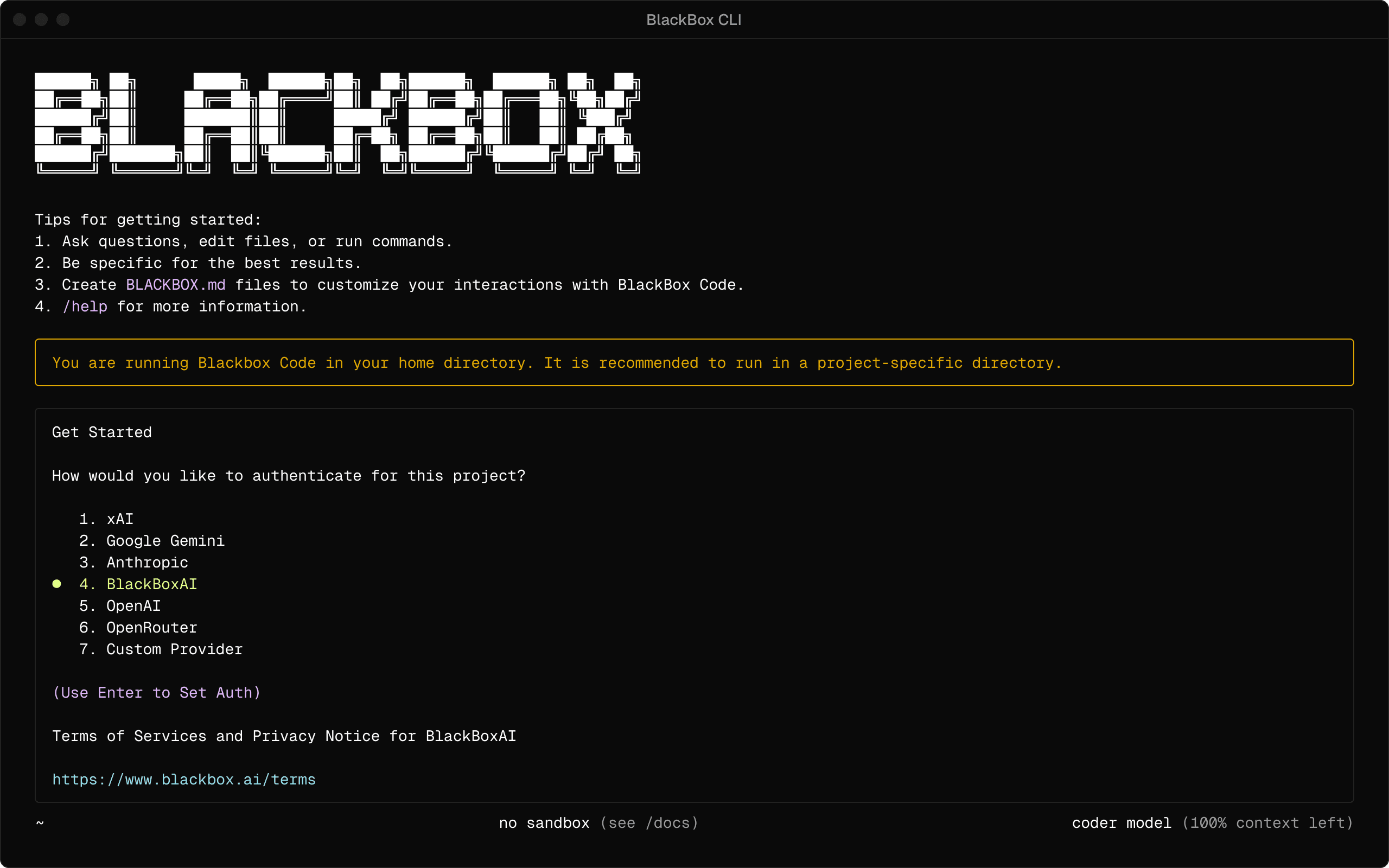
Choose your preferred AI model provider from the available options. BlackBox CLI supports multiple providers for flexible setup.
02
Enter API Key
Enter your BLACKBOX API key when prompted. You can find and manage your key in the BlackBox Dashboard.
03
Choose AI Model
Select the AI model you want to use from your chosen provider. View the full list of BlackBox AI supported models.